Bring your GIF
Drop a file, browse your device, or paste an image with Ctrl+V. You can work on up to ten files at once.
Make room for your next great GIF. Fine-tune the quality, choose a target size, and keep the good bits moving.
or choose a file. Your next great loop starts here.
A GIF on your clipboard? Ctrl + V works, too.A little loss can go a long way. Start here and find your happy medium.
Fewer colors = a lighter file.
Need different dimensions? Try the GIF resizer ↗
Three little steps.
One lighter loop.
Drop a file, browse your device, or paste an image with Ctrl+V. You can work on up to ten files at once.
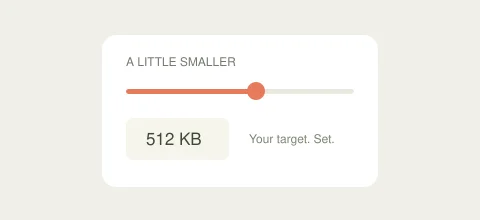
Choose a quality level or a target file size. Preview the result before you save.
Compare the original and result. Save one file or download the whole batch in a ZIP. No watermark, ever.
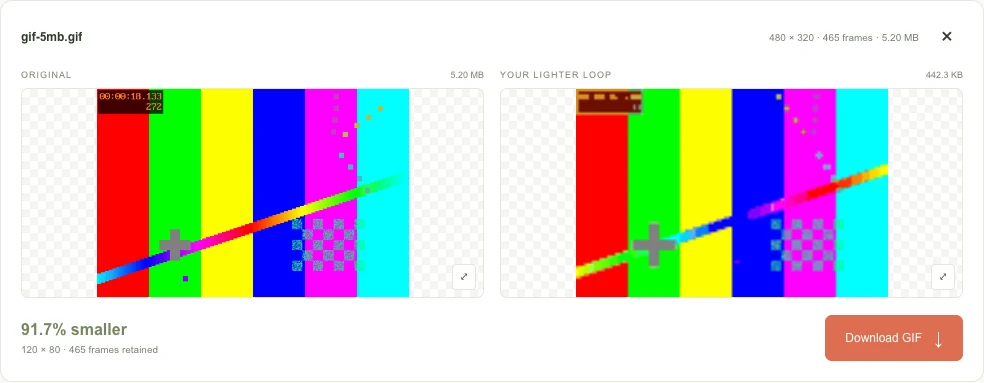
A GIF is a sequence of indexed-color images. Each color table can contain up to 256 entries, and individual frames may use their own table. A short animation can still become large when it contains many frames, lots of visual noise, or large pixel dimensions.
GIF has no motion-compensated inter-frame compression like modern video. It can store changed rectangles and reuse unchanged canvas regions, but an inefficient export may save each frame at its full dimensions. Photo detail, gradients, confetti, and camera movement are particularly expensive because so many pixels change from one frame to the next.
That gives you several useful controls: optimize unchanged areas, simplify colors, accept a little visual loss, or reduce the canvas. Your best setting depends on the animation. A flat-color icon usually tolerates a smaller palette better than a film clip.
A few small adjustments
can make a big difference.
| Setting | What it changes | A useful starting point |
|---|---|---|
| Lossy | Allows small pixel differences to make GIF data easier to compress. Zero uses optimization without intentional pixel loss. | Start at 30–50. For crisp text, try 0–20. Inspect moving edges after every change. |
| Colors | Limits the palette. Fewer colors can reduce size but introduce banding, particularly in gradients. | Try 128, then 64 for artwork. Keep 256 for detailed scenes if color accuracy matters. |
| Resize | Changes the pixel dimensions of every frame. A smaller canvas often gives the largest predictable saving. | Use the actual display width. Halving both dimensions leaves one quarter as many pixels. |
| FPS | Controls motion sampling when converting to GIF. Higher frame rates create more frames and usually larger files. | Try 12–15 fps for a video conversion; use more for fast motion. Existing GIF compression preserves frames. |
| Remove frames | Deletes images from the sequence. Keeping timing requires adding the deleted frames’ delay to the remaining frames. | A last resort for strict size limits. This compressor preserves frames instead of silently deleting them. |
Lossy describes compression strength: moving it right accepts more visual change. It is not a promise about the final percentage saved.
A target is a file budget, not a guarantee. Long, detailed animations may need smaller dimensions or another format. We check the result against your budget and tell you when it cannot fit.
Automatic target mode searches lossy settings and color palettes before stepping down the dimensions. It keeps the original animation frames. If you need an exact canvas size, use GIF resizer and review the result there.
Small web illustrations and compact Discord attachments. Too large for Discord custom emoji.
Lightweight page animations and messaging attachments, including Discord. Not a custom emoji budget.
More detailed loops for Discord attachments, below its documented default file cap.
Longer Discord attachments, below its documented default cap. Check the current allowance in your app.
| Platform & use | Official limit | Source & check date |
|---|---|---|
| Discord attachments (documented default) | 20 MiB Per file. Nitro status and server Boost level can allow higher limits. Check the destination app for your account. | Discord documentation ↗ 2026-11-06 |
| Discord custom emoji, including animation | 256 KiB This is below every preset here. Enter a custom target smaller than this cap for an emoji. | Discord documentation ↗ 2026-11-06 |
KB and MB targets in the tool use binary units: 1KB = 1,024 bytes. Platform limits can change by account, feature, and subscription. Check your destination’s current allowance. A 512KB result exceeds Discord’s custom emoji limit.
GIF is convenient for simple, widely supported loops. Animated WebP supports a broader color range and often produces smaller files for the same scene. MP4 uses video compression and is often a better fit for longer photographic clips. APNG keeps full-color frames and transparency, although it may be larger.
There is no universal size ratio: duration, dimensions, content, and encoder settings all matter. Convert the same source and compare the actual downloads. MP4 does not preserve GIF transparency, and video autoplay or looping depends on where you publish it. Check format support at your destination before switching.
Explore the GIF converterStart from your best available source. Repeatedly applying lossy processing to a previously compressed download can compound artifacts. Keep your original locally and try settings from that original whenever possible. The side-by-side previews help you check whether the savings are worth the visual change.
Animation decoding needs more memory than the file size suggests. A 100MB file containing thousands of large frames can exceed a phone’s available memory. Process fewer files at a time if your browser becomes slow. Supported inputs are validated locally, and a failed file will not prevent other files in the batch from finishing.
This tool is free, with no account, watermark, or daily processing quota. You can add up to ten files per batch, each no larger than 100MB. The limits keep the browser responsive; they do not represent a remote upload service. On a phone, use the file picker, then tap either preview to open it full screen.
A compression level of 0 disables lossy compression, but reducing the color palette can still change pixels. This tool applies a palette limit even at level 0, so it does not guarantee pixel-identical output for every GIF. Savings depend on the source; an already optimized GIF may barely shrink.
Compression and target mode are designed to retain animation rather than drop frames to save space. Engine optimization can change the frame representation, so an identical frame count is not guaranteed. Target mode may reduce colors or dimensions. Format conversion resamples the animation to your selected frame rate.
Lossy compression and palette reduction can change pixels. Compare the previews, especially gradients, text, and edges. Resize changes dimensions.
You can use a compatible mobile browser that supports WebAssembly and Web Workers. Choose files from your phone and keep the page open while processing. Large animations may exceed your device's memory, so start with a small file and a small batch.
Yes. There is no account, watermark, or daily quota. Each batch supports up to ten files, each at most 100MiB (104,857,600 bytes). The interface labels this limit as 100MB.
Compression and resizing accept GIF. The converter accepts GIF, MP4, WebP, and PNG/APNG files, with GIF, MP4, WebP, or APNG output. MP4 input support depends on its codec; browser support and available memory can also limit conversion.
Open the 512KB tool, choose your GIF, and run target mode. It searches compression settings and color palettes, then smaller dimensions if needed. Here 512KB means 524,288 bytes. The result reports whether it fits; some GIFs cannot reach that budget with the available settings.
The processing code reads and processes your animation locally in your browser; it does not send the file to a processing server. The site also loads Google Tag Manager and Microsoft Clarity for analytics, so visiting the page can generate third-party network requests.
A little less weight. A lot more room to share.
Make your GIF lighter